
A guide for families
Getting started, step by step
Your child can start today, free and without an account. When you want their progress saved on all your devices and to see how they are doing, create a family account. Here is each step.
Step 1: Your child plays today, free and with no account
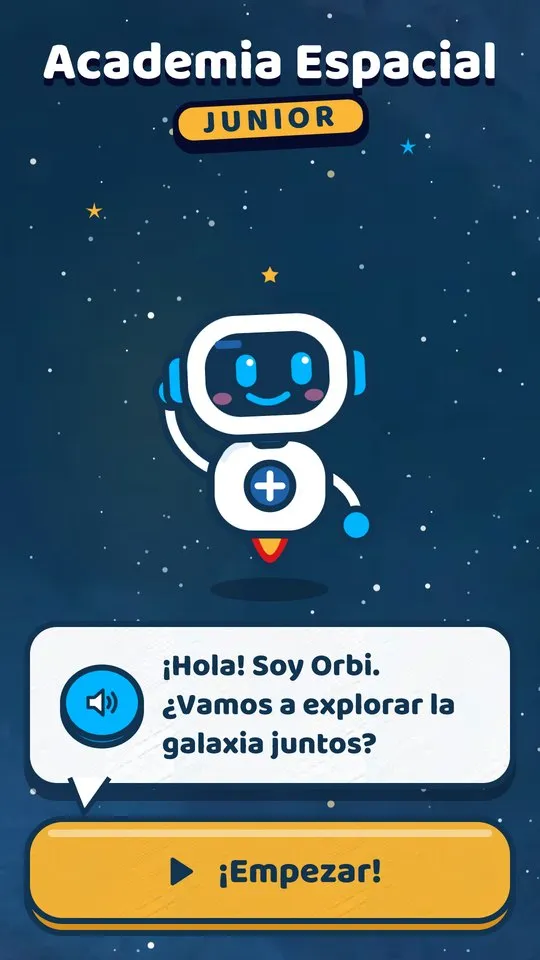
Open app.cenacep.online in the browser of a phone, tablet or computer. Your child picks an astronaut helmet, their grade and a nickname, and Orbi the companion robot guides them through their first mission.
It is an open demo: no email or password needed. Progress is saved only on that device and we send none of the child's data to our servers. There are no ads and no purchases.
Step 2: Create your family account
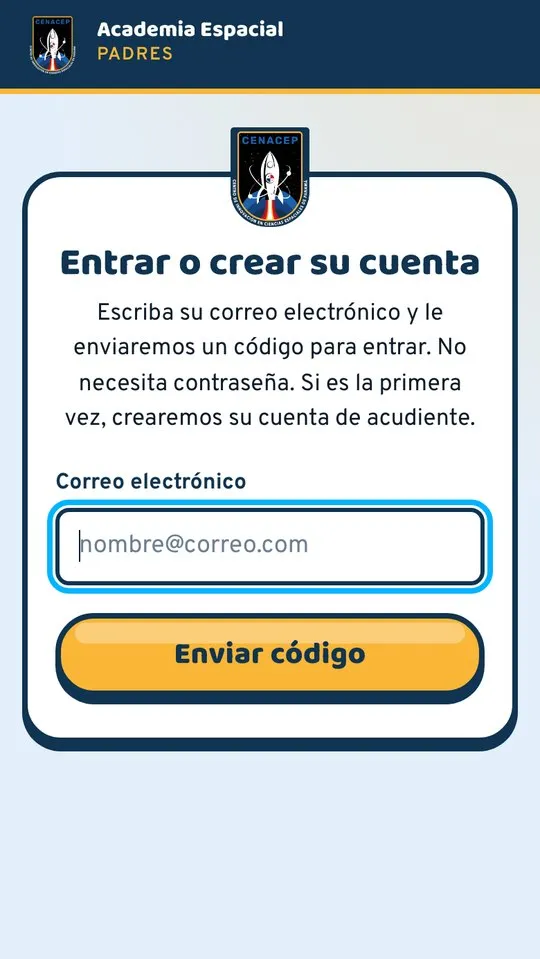
At padres.cenacep.online, type your email address. We send you a 6-digit code (it works once, for 15 minutes): type it in and you are signed in. No password to remember.
The first time, we ask for your name and mobile number, and for you to read and accept the privacy notice and terms of use. Without that consent we store no data about your children.
Step 3: Add your children
For each child we ask for the bare minimum:
- a nickname or first name, never their full name;
- their grade, from preschool to sixth, so they play the MEDUCA topics for that grade;
- their picture PIN: a helmet and 3 pictures that you choose and teach them.
Step 4: Link the tablet or phone they play on
In the parent app, go to Dispositivos (Devices) and tap “Crear código” (Create code). The code works once, for 10 minutes.
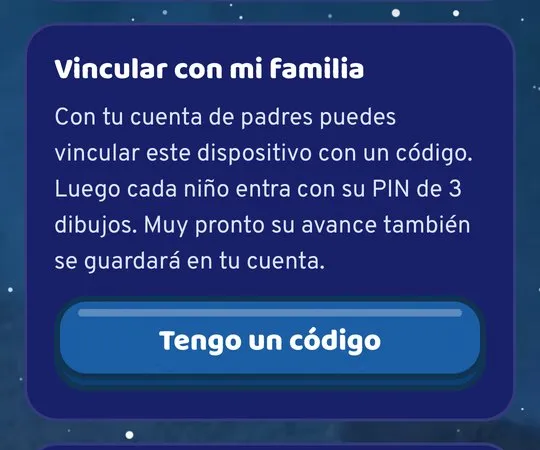
On your child's device, open app.cenacep.online, press and hold the “Para padres” (For parents) button in the corner (so children don't open it by accident), tap “Tengo un código” (I have a code) and type it in. You do this once per device.
Step 5: Your child signs in with their picture PIN
On a linked device your child types nothing: they tap their helmet, then their 3 pictures, and carry on where they left off.
After 5 wrong tries, that device locks for them and you unlock it from the parent app.
Step 6: Several children on one device
Each child plays with their own profile and their own grade, even on the same phone or tablet: a younger brother is not stuck at his older sister's level. Progress, stickers and the day's play time belong to each child.
To switch, tap the helmet at the top of the map and choose who is playing (“¿Quién juega?”, Who's playing?). With no account, up to 5 children switch with one tap; on a linked device, each signs in with their picture PIN.
To change a child's grade, tap the grade on the map and press and hold the button (it is meant for a grown-up). With a family account, the grade is set in the parent app.
Step 7: What you see in the parent app
You can follow along without sitting next to them:
- progress goal by goal: which topics they have mastered and where they are struggling;
- how many minutes they played and how many missions they completed each week;
- a weekly summary by email, which you can turn off at any time;
- a daily play limit, from 10 to 60 minutes (20 to start with);
- weekly leagues: no last place and nicknames only. If you prefer, turn them off and your child sees their personal records instead.
Step 8: Invite other families and earn CENACEP prizes
From the parent app you can send your invite link on WhatsApp. You only see how many families joined, never who they are.
Clear achievements earn your family real CENACEP prizes. They are picked up in person on a CENACEP day: we will never ask for your address.
Step 9: Add it to the home screen and play offline
The app isn't downloaded from a store: you add it to the home screen from the browser.
- Android: in Chrome, open the ⋮ menu and tap “Add to home screen” or “Install app”.
- iPhone and iPad: in Safari, tap Share, then “Add to Home Screen”.
- Once it has been opened with internet, missions work offline. Progress is saved on the device and, if it is linked, sent to your account when the connection is back.
Frequently asked questions
How much does it cost?
Nothing. The kids' app and the parent app are free. There are no ads, no in-app purchases and no paid plans.
What ages is it for?
For girls and boys aged 5 to 12, from preschool to sixth grade. Each child plays the topics for their grade.
I have two children and one tablet. How does each play at their own level?
Create a crew member for each child, with their own grade. On the map, tap the helmet at the top to switch crew member: each sees their own galaxy, progress and play time. Up to 5 children fit.
Does it follow the MEDUCA curriculum?
Yes. The math, science and English missions follow Panama's MEDUCA curriculum for each grade, and Lectura works on the reading comprehension of their grade. Everything is used alongside school, 15 to 20 minutes a day. They complement school; they don't replace it.
What data do you keep about my child?
Only a nickname, their grade, their picture PIN and their progress in the missions. Never their full name or photos. Without a family account, nothing leaves the device. The details are in the privacy notice.
Are there ads or purchases?
No. We show no ads, sell nothing inside the app, and children never chat with strangers.
Which devices does it work on?
Any phone, tablet or computer with an up-to-date browser: Android, iPhone, iPad, Chromebook, Windows or Mac. No app store download needed.