Screens with a purpose: how to choose safe educational apps for kids
A practical checklist for reviewing any app before you hand it to your child: ads, purchases, contact with strangers, personal data and family visibility.
It’s Saturday morning and your seven-year-old asks for your phone: a classmate told him about a game “for learning to add.” You open the app store and find dozens of options with the word educational, star ratings and cheerful drawings. How do you know which one is a good idea?
Anyone can put an “educational” label on an app. What really matters is how it works on the inside: what it shows your child, what it asks for and who it connects them with. The good news is that you don’t need to be a tech expert to check. You just need to know what to look for.
Before you download
Ask yourself two simple questions. First, what do I want it for? “So she can practice her times tables” is a clear purpose. “So he can have some fun for a while” is fine too, but then we’re judging it as a game, not as a learning tool.
Second, is it right for their age? The store usually shows an age rating. It’s a starting point, not a guarantee, but if it says “12 and up” and your daughter is six, you already have your answer.
The checklist
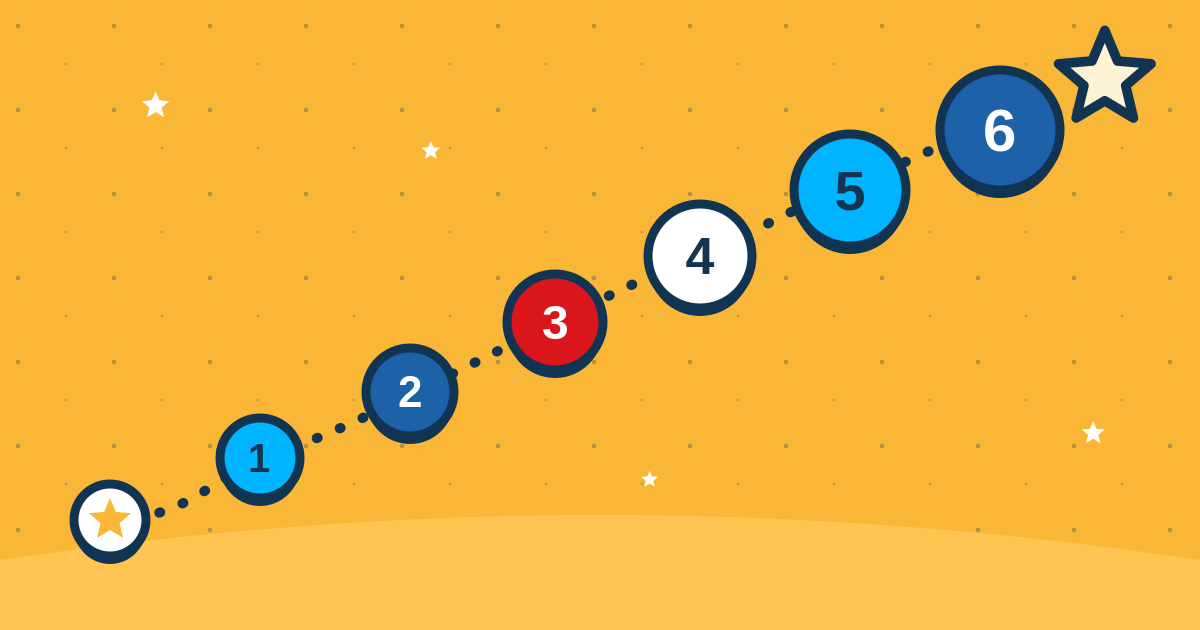
These are the questions worth asking about any app before handing it to a child aged 5 to 12.
1. Does it have ads? Ads break concentration and often lead to other apps or pages you didn’t choose. Young children can’t always tell content from advertising. An educational app for children should work without ads.
2. Does it have in-app purchases? Look for coins, gems, extra lives or “special bundles” bought with real money. Besides the risk of surprise charges on your card, these systems push children to keep asking for more. If the app is paid, ideally an adult makes the payment, outside the part your child uses.
3. Can my child talk to strangers? Look for chats, online games with other players, comments or private messages. For a primary-school child, the safest rule is simple: no contact with people the family doesn’t know. If the app has an assistant or character that “talks,” find out what it can talk about and whether parents can see those conversations.
4. What data does it ask for? Check what it requests at sign-up. Full name, date of birth, photo, location? An app for practicing math almost never needs all that. Check the phone permissions too: if an addition app wants access to the camera, microphone, contacts or location, ask yourself why.
5. Can you see what your child is doing? A good educational app lets the family know what the child is practicing, where they’re making progress and where they’re struggling. It might be a parent dashboard, an email report or a weekly message. If there’s no way to know what happens inside, you’re left in the dark.
6. Does it reward learning or time? Some apps hand out prizes for playing more minutes or for logging in every day. That keeps a child glued to the screen, but it doesn’t mean they’re learning. Prefer apps that recognize when a child masters something new.
How to check an app in one sitting
You don’t need a whole afternoon. About fifteen minutes will give you a good picture:
- Try it yourself first. Play the first levels as if you were your child. Notice whether ads, purchase pop-ups or invitations to connect with others appear.
- Open the settings. Look for parental controls, privacy and contact options.
- Check the permissions. In your phone’s settings you can see what permissions each app has and turn off the ones it doesn’t need.
- Lock down purchases. On most phones and app stores you can require a password or fingerprint for every purchase or download. Turn it on for the devices your children use.
Your child’s data and the law in Panama
In Panama, Law 81 of 2019 (Ley 81 de 2019) deals with the protection of personal data. In general terms, it sets rules on how people’s data is collected, used and stored, and recognizes their rights over their information.
For families, the practical step is to read each app’s privacy notice before signing your child up. It may be long, but look for answers to four questions: what data it collects, what it uses it for, who it shares it with and how to ask for it to be deleted. If there’s no notice, it’s impossible to follow, or it doesn’t answer those questions, that tells you something too.
This guide is not legal advice. If you have questions about your rights or about a specific app, the right step is to consult a professional.
House rules that help
No app replaces a caring adult. A few simple habits make a big difference:
- The tablet or phone gets used in the living room or at the dining table, not behind a closed door.
- New downloads always go through an adult.
- There’s an agreed time for screens, just like there is for homework or playing outside.
- Your child knows they can tell you about anything strange they see, without fear of losing the device.
That last one may matter most. No setting protects a child as well as feeling safe enough to tell you what happens to them online.
A checklist we apply to ourselves
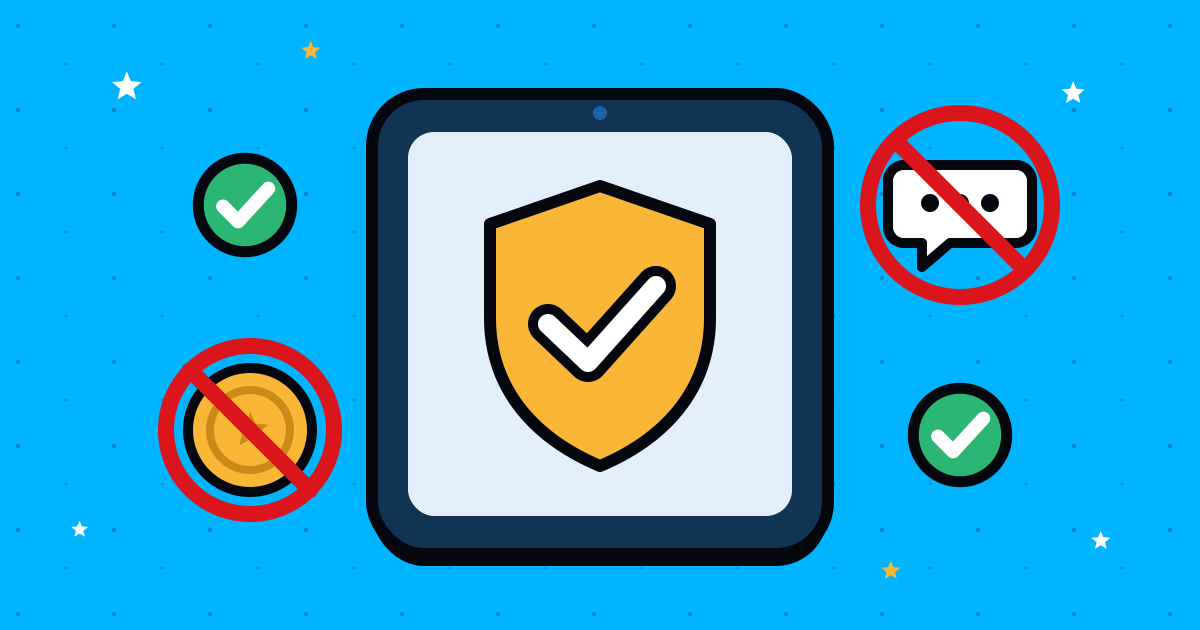
At Academia Espacial Junior we follow this same checklist: no ads, no in-app purchases, no contact with strangers, only minimal data about the child, and progress reports for the family. We invite you to review our app with these same questions, just as you would any other. A screen with a purpose is one you can check and understand.